The home office monitor world has changed in ways you actually feel day to day.
120Hz is now the new normal (instead of 60Hz), and everything just looks smoother: scrolling, switching tabs, moving windows. It’s the kind of upgrade you notice instantly, even if you didn’t know you needed it.
OLED screens have also grown up. The old text clarity issues are basically gone, so they’re now perfectly usable for coding and documents. And brighter displays mean you can sit near a window without constantly fighting glare.
What you should buy today really comes down to how you work. Developers, video editors, and heavy multitaskers all need very different setups. The good news: there are solid options for each, at pretty much every budget.
Best Computer Monitors for Productivity, Creative Work, Coding, and Multitasking
The five monitors below cover the full range, from a 4K 120Hz USB-C productivity monitor that represents the best overall value in the category, to a 49-inch QD-OLED ultrawide that replaces a dual-monitor setup with a seamless curved canvas.
1. Dell 27 Plus 4K USB-C Monitor (S2725QC)
The best overall home office monitor

Dell’s decision to bring 120Hz to their standard office monitor line changes what “productivity display” means today.
The combination of 4K text sharpness and 120Hz motion smoothness on the S2725QC produces a noticeably different working experience from a standard 60Hz 4K display, and once you’ve used it for a week, going back feels like watching a slightly stuttered video feed.
The IPS panel delivers a 1500:1 contrast ratio that makes dark interfaces and terminal windows look substantially better than most IPS panels at this price, with the trade-off of narrower viewing angles that become relevant if you frequently share your screen with someone sitting beside you.
The Ash White finish is an aesthetic choice that works particularly well in bright, modern home office setups.
The 10W integrated speakers are louder and clearer than what most monitors include at this price, handling video calls and background audio without requiring a separate desktop speaker.
USB-C power delivery covers laptop charging and display signal through a single cable, which is the connectivity standard that modern laptop-first home offices should require from any monitor purchase.
Type: 4K USB-C productivity monitor | Key specs: 27-inch 4K (3840×2160), 120Hz, IPS panel, 99% sRGB, 1500:1 contrast, integrated 10W speakers, USB-C power delivery
Pros:
- 120Hz refresh rate produces noticeably smoother scrolling and window management than standard 60Hz office displays, reducing the low-level visual processing demand during long working sessions
- IPS panel contrast ratio of 1500:1 makes dark-mode interfaces and terminal windows significantly more legible than most other IPS panels at comparable pricing
- Integrated 10W speakers outperform the thin-driver audio that most monitors at this price include, handling video calls and background audio without a separate speaker purchase
Cons:
- Tilt-only stand has no height adjustment, which is a meaningful ergonomic limitation for users who need to match their monitor height to their seating position
Verdict: The most balanced productivity monitor purchase. For the large majority of home office users who need sharp text, smooth motion, and single-cable USB-C connectivity from a well-designed display, the S2725QC covers everything at a price that doesn’t require careful justification.
2. ASUS ProArt Display 32-inch 6K (PA32QCV)
The best for creative professionals
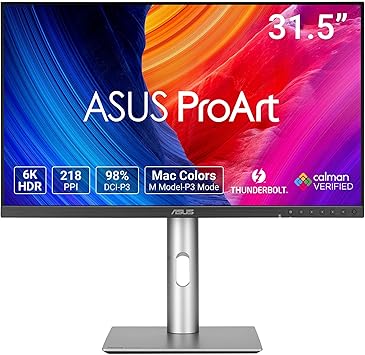
218 pixels per inch at 31.5 inches is a pixel density that changes what you can see in a high-resolution image at normal working distance.
Fine details in photography, small text in complex design layouts, and subtle color gradients in illustration work are all more visible at 6K than at 4K, and that clarity advantage compounds across a full working day of detailed visual work.
The Calman Verified color accuracy certification means the display ships with measured, documented color performance rather than a general claim about DCI-P3 coverage.
The built-in backlight sensor maintains consistent color accuracy throughout the working day as ambient light conditions change, eliminating the warm-up drift that affects displays without this calibration.
Thunderbolt 4 handles both 96W laptop charging and daisy-chaining to a second display from a single connection, which is the connectivity architecture that Mac-heavy creative studios have standardized around.
At 60Hz, the display isn’t optimized for motion work or gaming, but for still-frame design, photo editing, and illustration; the refresh rate limitation is irrelevant to the quality of the output.
Type: 6K professional color-accurate display | Key specs: 31.5-inch 6K (6016×3384), IPS, 98% DCI-P3, Thunderbolt 4 (96W PD), DisplayHDR 600, Calman Verified
Pros:
- 218 PPI pixel density matches Apple Pro Display XDR density and makes fine detail in photography, illustration, and typography work visible at normal working distance in a way that 4K panels at this size can’t match
- Calman Verified color accuracy provides documented, measured performance rather than a specification claim, which matters for professional color-critical work
- Thunderbolt 4 daisy-chaining supports multi-display creative studio setups from a single laptop connection, with 96W charging included
Cons:
- 60Hz refresh rate is the clearest limitation for users who want the same display to handle creative work, casual gaming, or video playback with smooth motion
- Price premium over 4K competitors is significant and only justified if the 6K pixel density and color accuracy specifications are genuinely required for the work
Verdict: The closest thing to a Pro Display XDR at a price that creative professionals outside enterprise budgets can actually justify.
For digital illustrators, photographers, and video editors who need to see fine detail and accurate color simultaneously, the 6K pixel density and Calman Verified calibration are worth the cost difference over 4K alternatives.
3. BenQ RD280U 28.2-inch 4K+
The best for programmers and coders

The 3:2 aspect ratio is the specification that makes the RD280U genuinely different from every other monitor on this list, and the difference matters most for the specific type of work it’s designed for.
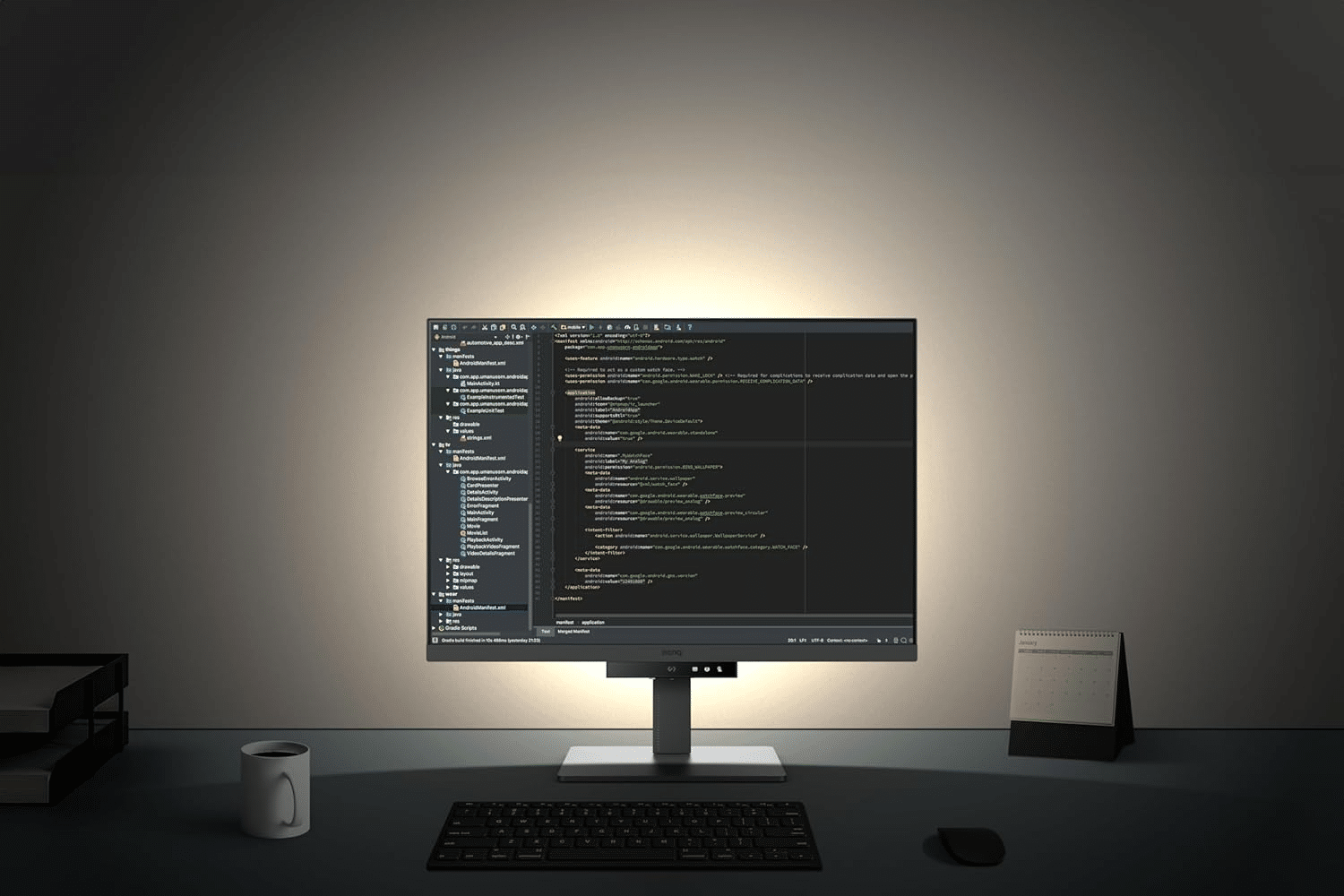
A standard 16:9 widescreen gives you horizontal real estate that’s largely irrelevant when you’re reading and writing code. The 3:2 ratio redirects that space vertically, which means more lines of code visible simultaneously without scrolling, longer function bodies readable in a single view, and more meaningful diff context during code review.
Developers who switch to a 3:2 display consistently report that going back to widescreen feels like having part of the screen cut off.
The Nano Matte panel coating reduces reflections without the light-diffusing haze that standard matte coatings sometimes introduce, which keeps text edges sharp in brightly lit environments where glossy panels wash out.
The MoonHalo backlight functions as an integrated bias light behind the display, reducing the contrast between a bright screen and a dark surrounding environment that contributes to eye strain during late-night coding sessions.
The KVM switch handles keyboard and mouse sharing between two connected computers without a separate hardware switch, which is useful for developers running a work machine and a personal machine on the same desk.
Type: 3:2 programming monitor | Key specs: 28.2-inch 4K+ (3840×2560), Nano Matte panel, 90W USB-C, KVM switch, MoonHalo backlight
Pros:
- 3:2 aspect ratio provides significantly more visible vertical space for code, text, and document work than 16:9 widescreen monitors at the same physical screen size
- MoonHalo integrated bias lighting reduces the screen-to-surround contrast that causes eye strain during extended evening sessions without requiring a separate bias light purchase
- A KVM switch enables keyboard and mouse sharing between two connected machines, removing the need for a separate KVM hardware device on multi-machine developer setups
Cons:
- 3:2 aspect ratio produces large black bars during 16:9 video content, which is a noticeable compromise for users who also use their monitor for video streaming or media consumption
Verdict: The most meaningful productivity upgrade available for developers, writers, and anyone whose primary work involves reading and writing text vertically.
The 3:2 aspect ratio advantage is immediately tangible and becomes progressively harder to give up the longer you use it.
4. Apple Studio Display (2026 Model)
The best for the Mac ecosystem
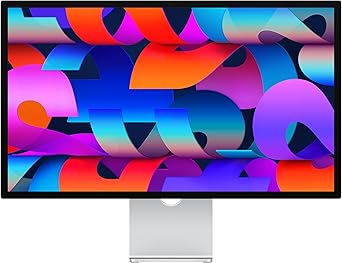
The 2026 Studio Display iteration doesn’t reinvent the product but refines the areas where the original version left room for improvement.
Thunderbolt 5 connectivity replaces Thunderbolt 3, which adds bandwidth for daisy-chaining multiple high-resolution displays from a single M-series Mac connection.
The A19 chip upgrade improves Center Stage camera tracking responsiveness and enables better Neural Engine processing for the microphone array’s noise isolation, which is the feature most Studio Display owners use in video calls daily.
The 5K resolution at 27 inches produces the macOS Retina scaling that Apple’s operating system is built around. Text rendering, interface element sharpness, and color accuracy in the native P3 color space are all optimized for exactly this pixel density at this screen size in a way that third-party displays running macOS require more configuration to match.
The six-speaker Spatial Audio system is the best integrated monitor audio available for a desktop display, handling music, video calls, and system audio at quality levels that eliminate the separate speaker purchase most monitor setups require.
Type: 5K Retina display | Key specs: 27-inch 5K (5120×2880), 600 nits brightness, Thunderbolt 5, 12MP ultra-wide camera, 6-speaker Spatial Audio system
Pros:
- 5K resolution at 27 inches provides the exact pixel density that macOS Retina scaling is calibrated for, producing the sharpest possible text and interface rendering without scaling configuration
- A19 chip upgrade improves Center Stage camera tracking responsiveness and microphone noise isolation for the video call quality that daily hybrid work requires
- The six-speaker Spatial Audio system replaces a separate desktop speaker purchase with audio quality that no other monitor on this list approaches
Cons:
- 60Hz refresh rate is the persistent limitation in the non-XDR Studio Display, and the gap between this and the 120Hz productivity standard that the Dell S2725QC sets is noticeable in daily use
- The height-adjustable stand is a separate purchase rather than included, which adds meaningful cost to what is already the most expensive display on this list
Verdict: Still the definitive Mac desk monitor for users who prioritize the complete integrated experience of display, webcam, microphone, and audio in a single device.
The Thunderbolt 5 upgrade and A19 chip improvements are meaningful refinements, and the 5K Retina rendering remains unmatched for macOS workflows.
5. Samsung 49-inch Odyssey G93SC (OLED)
The best for extreme multitasking

The G93SC’s 5120×1440 resolution across 49 inches creates the equivalent of two 27-inch QHD monitors placed side by side, but without the physical gap between screens that breaks visual continuity in a dual-monitor setup.
Three full-sized application windows run simultaneously without overlap, which changes how a trader monitoring multiple data feeds, a video editor working across a timeline and preview simultaneously, or a developer running a code editor, terminal, and browser side by side actually approach their workflow.
The QD-OLED panel has resolved the text fringing and subpixel rendering issues that made early OLED displays impractical for text-heavy work. Dark mode interfaces and terminal windows benefit from the infinite contrast that OLED delivers, with black elements that are genuinely black rather than dark grey as on LED-backlit displays.
The 240Hz refresh rate is beyond what productivity work requires, but it makes the display usable for gaming during off-hours without switching monitors.
OLED burn-in from static interface elements remains a legitimate concern for this panel type, and using the built-in screen saver and pixel-shift features is worth treating as a maintenance habit rather than an optional setting.
Type: Ultrawide multitasking monitor | Key specs: 49-inch DQHD (5120×1440), QD-OLED, 240Hz, 1800R curve, G-Sync/FreeSync, 0.03ms response time
Pros:
- 49-inch ultrawide replaces a dual-monitor setup with a seamless curved surface that eliminates the center gap that interrupts visual continuity on side-by-side monitor configurations
- QD-OLED infinite contrast makes dark-mode interfaces and terminal windows visually distinctive in a way that LED-backlit panels with finite contrast ratios can’t replicate
- 240Hz refresh rate covers both productivity work and gaming on the same display without requiring a second monitor for off-hours use
Cons:
- Physical desk footprint is the largest on this list by a significant margin, requiring a desk depth and width that smaller home office setups may not accommodate
- OLED burn-in risk from static interface elements like taskbars and application chrome requires consistent use of pixel-shift and screen-saver features as ongoing maintenance
Verdict: The most transformative productivity upgrade on this list for users who regularly manage multiple simultaneous windows and have the desk space to accommodate it.
Financial traders, video editors, and developers who currently use dual-monitor setups will find that the seamless ultrawide canvas changes their working style in ways that are difficult to go back from.
At a Glance: Best Home Office Monitors
| Dell S2725QC | ASUS PA32QCV | Samsung G93SC | BenQ RD280U | Apple Studio | |
| Resolution | 4K (16:9) | 6K (16:9) | DQHD (32:9) | 4K+ (3:2) | 5K (16:9) |
| Refresh rate | 120Hz | 60Hz | 240Hz | 60Hz | 60Hz |
| Connectivity | USB-C (PD) | Thunderbolt 4 | HDMI / DP | 90W USB-C | Thunderbolt 5 |
| Unique trait | Best value | 6K precision | Massive width | Vertical space | Best webcam/mic |
How to Choose the Best Monitor for a Home Office
Resolution and text clarity
4K is the practical minimum for a 27-inch or larger productivity display. At 4K on a 27-inch panel, text sharpness reaches a level where individual pixels aren’t visible at normal working distance, which reduces the subtle eye strain that comes from slightly soft text rendering across a full working day.
At 1440p on the same panel size, text edges are visibly softer, particularly at small font sizes in code editors and spreadsheets.
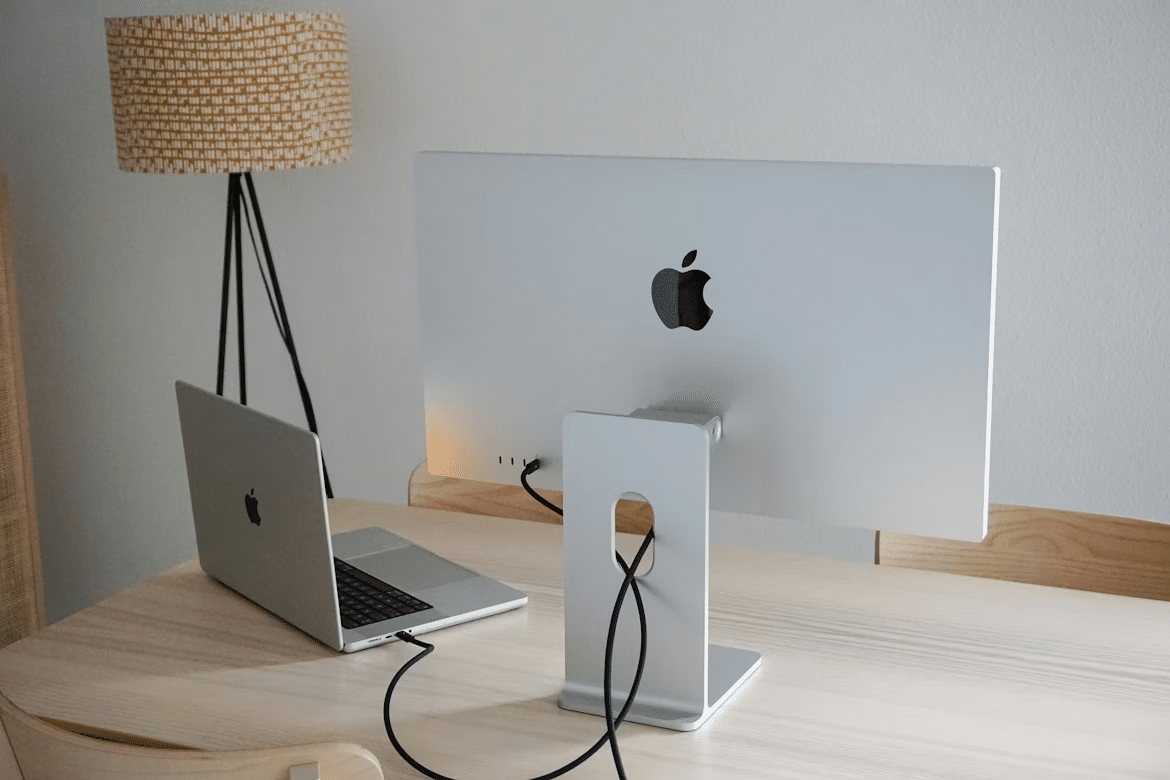
Mac users benefit specifically from 5K or 6K resolution because macOS Retina scaling is optimized for those pixel densities at standard 27-inch working distances.
Aspect ratio and workflow fit
Standard 16:9 covers general use and handles video calls and media consumption without compromise.
The 3:2 ratio on the BenQ RD280U is purpose-built for vertical-scroll workflows: code, documents, spreadsheets, and reading all benefit from the additional visible lines that the taller aspect ratio provides.
Ultrawide 21:9 and super-ultrawide 32:9 formats work best for multitaskers who need three or more windows open simultaneously and find constant alt-tabbing a productivity friction point.
The aspect ratio choice is the single most workflow-defining specification on this list and is worth deciding before comparing any other feature.
USB-C Power Delivery and connectivity
A monitor with 90W or higher USB-C Power Delivery handles video input, USB hub functionality, and laptop charging through a single cable. For MacBook Pro and modern Windows laptop users, single-cable connectivity removes the clutter of separate power bricks, USB hubs, and display cables from the desk setup entirely.
Thunderbolt 4 and Thunderbolt 5 add daisy-chaining capability for multi-display setups and faster data transfer for external storage workflows, which matters specifically for creative professionals running external SSDs for video editing or large file transfers.
Refresh rate and eye fatigue
The transition from 60Hz to 120Hz for productivity work is less about fast motion and more about reducing the perceptual effort your visual system applies to tracking cursor movement, scrolling text, and window animations throughout a long working day.
The difference is subtle in short sessions and cumulative over hours. Users who switch from 60Hz to 120Hz office monitors consistently report lower afternoon fatigue, and returning to 60Hz after extended use at 120Hz produces an immediately noticeable sense of visual resistance.
Frequently Asked Questions
Is 4K actually necessary for office productivity?
For a 27-inch or larger display used primarily for text, code, and documents, yes. The pixel density difference between 4K and 1440p at 27 inches produces noticeably sharper text rendering that reduces the subtle eye strain that accumulates across long working sessions.
At smaller display sizes below 24 inches, the practical difference diminishes. The monitor you spend eight hours a day looking at is worth getting right on this specification.
Are ultrawide monitors actually better than two separate monitors?
For most multitasking use cases, yes. The seamless, continuous surface eliminates the physical gap at the center of a dual-monitor setup, which interrupts reading and visual continuity on content that spans both screens.
Dual monitors retain an advantage in flexibility for users who want to rotate one screen to portrait orientation or who use two physically separate spaces for different categories of work rather than a unified desktop.
Do I need USB-C or Thunderbolt for my monitor connection?
USB-C with Power Delivery handles single-cable connectivity for most modern laptops: video input, USB hub, and charging through one cable.
Thunderbolt 4 or 5 adds daisy-chaining capability for multi-monitor setups and faster data transfer for external storage, which matters specifically for video editors and photographers who move large files between drives regularly.
For standard home office work on a single-monitor setup, USB-C with 90W Power Delivery is sufficient.
Which monitor is best for long working hours and eye health?
The BenQ RD280U and Dell S2725QC are the strongest options for extended daily use. The BenQ MoonHalo backlight reduces the contrast between screen brightness and room brightness that causes eye strain during evening sessions, and the Nano Matte panel coating minimizes reflections in bright rooms.
The Dell’s 120Hz refresh rate reduces the perceptual effort of tracking motion on screen across a long day. Both features address the fatigue mechanisms that matter most over an eight to ten-hour working session.
Which One Should You Get?
For the large majority of home office users who want a modern 4K display with 120Hz smoothness and single-cable USB-C connectivity at a justifiable price, the Dell S2725QC is the clearest recommendation.
For developers and writers whose work is primarily text-based and vertical-scroll-heavy, the BenQ RD280U‘s 3:2 aspect ratio is a workflow improvement that pays back every day the display is in use.
For creative professionals who need the highest possible pixel density and documented color accuracy for design, photography, and video work, the ASUS ProArt 32-inch 6K delivers professional-grade visual performance at a price that doesn’t require an enterprise budget.